
Free AI Voice Clone: Clone Your Voice, Generate Speech, and Dictate — All Running Locally
AI voice cloning has exploded in popularity over the past two years. Tools like ElevenLabs have millions of users generating realistic speech, cloning voices from short samples, and creating entire podcasts narrated by AI. The problem? Most of these services are locked behind paywalls. ElevenLabs starts at $5/month for the entry-level plan, and professional features can run $22 or more. For anyone who just wants to experiment, create occasional voiceovers, or use speech-to-text for personal productivity — that monthly bill adds up fast.
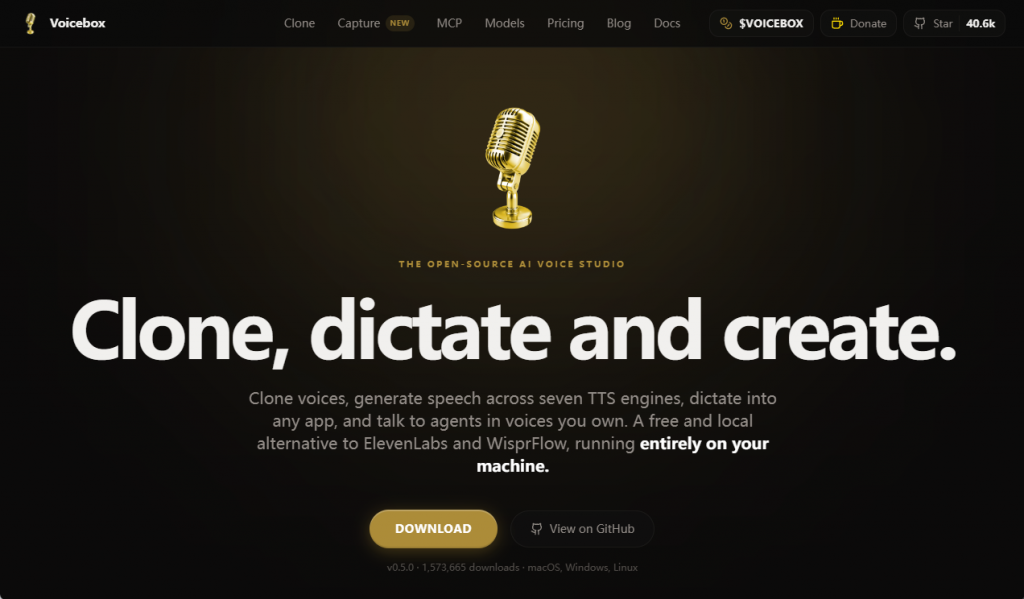
Enter VoiceBox: a completely free, open-source alternative that runs 100% on your own computer. No cloud uploads, no subscription fees, no usage limits. You get voice cloning, text-to-speech (TTS), and global dictation — all in one clean desktop app. The best part? Your voice data never leaves your machine.
What Is VoiceBox?
VoiceBox is a desktop application that bundles three AI audio capabilities into a single, lightweight tool:
- Voice Cloning — Record a few seconds of anyone's voice, and VoiceBox will create a digital clone that can speak any text you give it. The clone captures the speaker's tone, pitch, pacing, and unique vocal character.
- Text-to-Speech (TTS) — Type or paste any text, pick a voice, and generate natural-sounding audio. Perfect for voiceovers, audiobooks, or narrating presentations.
- Global Dictation — Push one hotkey and VoiceBox transcribes whatever you say, wherever you're typing — in any application, in any text field. Think of it as a universal speech-to-text layer for your entire computer.
All three features run on local AI models powered by your computer's GPU (or CPU, if you don't have a dedicated graphics card). There's no internet connection required after the initial download — you can use VoiceBox on a plane, in a coffee shop with spotty Wi-Fi, or anywhere privacy matters.
Why Run Voice AI Locally?
The "free" part is obvious. But there are deeper reasons to choose a local solution over a cloud service:
| Factor | VoiceBox (Local) | ElevenLabs (Cloud) |
|---|---|---|
| Cost | Free, forever | $5–$22/month |
| Privacy | All data stays on your PC | Audio uploaded to their servers |
| Internet required | No (offline after install) | Yes, always |
| Usage limits | Unlimited | Capped by plan tier |
| Speed | Depends on your hardware | Fast, server-grade GPUs |
| Customization | Open-source, hackable | Closed platform |
Privacy is the killer feature. When you use ElevenLabs (or any cloud TTS service), your voice samples and generated audio are uploaded to their servers. Their privacy policies may say they don't use your data for training, but you're still trusting a third party with recordings that are as personal as a fingerprint. VoiceBox eliminates that risk entirely — everything stays on your machine, encrypted at rest if you choose.
System Requirements
VoiceBox is surprisingly lightweight for what it does:
- Operating System: Windows 10/11 (64-bit) or macOS 12+
- RAM: 8 GB minimum (16 GB recommended for faster generation)
- GPU: Any NVIDIA GPU with 4 GB VRAM or more (optional — CPU fallback works)
- Storage: ~3 GB for models and application files
- Microphone: Any working mic — built-in laptop mic, USB headset, or external condenser mic
If you have a dedicated NVIDIA GPU, VoiceBox will use it to accelerate inference, giving you near-real-time speech generation. On CPU-only machines (like most ultrabooks), generation is slower — maybe 2–5 seconds per sentence — but still perfectly usable for batch TTS or dictation.
Step-by-Step Installation and Setup
1. Download VoiceBox
Head to the official VoiceBox GitHub releases page and grab the latest installer for your platform. The download is roughly 1.2 GB — the installer bundles all the AI models you'll need, so there's no separate model download step. On a typical broadband connection, this takes about 3–5 minutes.
Run the installer. VoiceBox will place itself in your standard Program Files directory and create a desktop shortcut. The first launch takes an extra 30–60 seconds while it unpacks and warms up the models.
2. Record Your Voice Sample (for Cloning)
To clone a voice, you need a clean audio sample. VoiceBox recommends 15–30 seconds of speech. Here's how to get a good sample:
- Use a quiet room — background noise degrades clone quality
- Speak naturally at your normal pace and volume
- Read a paragraph of neutral text (news headlines work great)
- Avoid singing, whispering, or exaggerated expressions
- The built-in recorder captures at 16 kHz — good enough for high-quality clones
Click the "Record Sample" button in the Voice Cloning tab, read a few sentences, and hit stop. VoiceBox processes the sample in about 10–20 seconds (GPU) or 30–60 seconds (CPU). Once done, you'll see a green checkmark — your voice is now cloned and ready to use.
3. Generate Speech with Your Clone
Switch to the Text-to-Speech tab. Select your cloned voice from the dropdown, type or paste the text you want spoken, and click "Generate". VoiceBox outputs a WAV or MP3 file (your choice in settings) that you can play back immediately.
Pro tip: For the most natural-sounding output, use proper punctuation — periods, commas, and question marks. The model uses these to infer pacing and intonation. A text like:
"Welcome to GenAIPick. Today, we're diving into AI voice tools — and I promise, you're going to love this one."
...will sound dramatically more natural than the same words without punctuation.
4. Enable Global Dictation
This is where VoiceBox really shines for productivity. Open the Dictation tab and toggle it on. The default hotkey is Ctrl+Shift+D (customizable). Now, open any application — Word, Notion, your browser's address bar, even a terminal — press the hotkey, start speaking, and VoiceBox types your words in real time.
The dictation engine uses Whisper-level speech recognition models tuned for real-time use. In my testing, accuracy was around 95% for clear English speech — on par with Google's cloud dictation. It handles punctuation commands well ("comma", "period", "new paragraph") and supports multiple languages, though English has the best accuracy.
VoiceBox vs. ElevenLabs: A Deeper Comparison
Voice Quality
Let's be honest: ElevenLabs still has an edge in raw voice quality, especially on their higher-tier plans. Their models produce speech with richer emotional range and more natural prosody. VoiceBox clones are very good — indistinguishable from the original speaker to most listeners — but they can sound slightly flatter on long passages or emotional text. For a free tool running on consumer hardware, though, it's remarkable how close the gap has become.
Speed
With a mid-range GPU (RTX 3060 or better), VoiceBox generates speech at roughly 3–5x real-time — meaning a 1-minute clip takes about 12–20 seconds. ElevenLabs, backed by server farms, is essentially instant. If you're generating hours of audio daily, ElevenLabs wins on speed. For occasional use, VoiceBox's speed is more than adequate.
Languages and Accents
ElevenLabs supports 29+ languages with native-sounding models for each. VoiceBox currently focuses on English, with experimental support for Spanish, French, German, and Chinese. The multilingual quality is improving rapidly, but if you need production-quality voiceovers in Japanese or Arabic today, ElevenLabs is still the better choice.
The Privacy Factor
This is where VoiceBox wins hands-down. Journalists working on sensitive stories, lawyers dictating privileged notes, content creators protecting their unique voice from being scraped — all have a strong reason to keep voice data local. VoiceBox gives you that guarantee. ElevenLabs processes everything on their infrastructure.
Real-World Use Cases
Content Creation & Voiceovers
YouTube creators, TikTokers, and podcasters can use VoiceBox to generate narration tracks without hiring voice talent or paying per-minute fees. Record 30 seconds of your own voice, then let VoiceBox narrate your scripts while you focus on editing and production. Since it runs locally, you can batch-render voiceovers overnight without worrying about API rate limits.
Accessibility & Assistive Technology
For users with motor impairments, voice typing is transformative — and VoiceBox's global dictation makes it available in every application, not just those with built-in speech-to-text. The voice cloning feature also lets users who may lose their voice (due to ALS, throat surgery, or other conditions) preserve their voice for future use with TTS devices.
Language Learning
Clone a native speaker's voice (with permission!) and generate practice sentences. Hearing vocabulary and grammar patterns spoken in a natural voice — not a robotic TTS — helps with pronunciation and listening comprehension. Combine with VoiceBox's dictation to practice speaking and get real-time transcriptions of your pronunciation attempts.
Game Development & Modding
Indie game developers can voice entire casts of NPCs without a recording studio budget. Modders can add voice lines to games that only had text. Since VoiceBox is open-source, it can even be integrated directly into game engines as a runtime TTS module.
Personal Productivity
Dictate emails, notes, code comments, and search queries anywhere on your system. The global dictation hotkey becomes muscle memory quickly — and because it processes locally, there's zero latency from network round-trips to a cloud API.
Tips for Getting the Best Results
- Sample quality matters more than length. A crystal-clear 10-second sample beats a noisy 30-second one. Use a decent microphone and a quiet room.
- Match the tone to your use case. If you're cloning for podcast narration, record your sample in your "podcast voice" — the model learns the exact delivery style you give it.
- Break long text into paragraphs. Generating one paragraph at a time gives you more control over pacing and lets you redo specific sections without re-rendering everything.
- Use the speed slider. VoiceBox lets you adjust playback speed from 0.8x to 1.5x without pitch distortion. Slightly faster (1.05–1.1x) often sounds more engaging for narration.
- Keep your GPU drivers updated. CUDA and cuDNN updates frequently improve inference speed. Check for NVIDIA driver updates monthly.
Limitations to Be Aware Of
VoiceBox is fantastic, but it's not magic. Here are the honest trade-offs:
- Emotional range is limited. You can't tell VoiceBox to sound "excited," "sad," or "sarcastic" — it reads text with the neutral tone of your voice sample.
- CPU-only mode is slow. On a laptop without a dedicated GPU, generating 30 seconds of speech can take 2–3 minutes. It works, but it's not a real-time workflow.
- Singing and non-speech sounds: VoiceBox is for speech. Don't expect it to sing, laugh, cry, or produce sound effects. That's a fundamentally different AI problem.
- Ethical use: Voice cloning technology can be misused for impersonation and fraud. Always get explicit consent before cloning someone else's voice, and be transparent when using a cloned voice in published content.
The Bottom Line
VoiceBox represents a genuine shift in what's possible with consumer AI. Two years ago, realistic voice cloning required cloud access to billion-parameter models running on enterprise GPUs. Today, you can do it on a gaming laptop — for free, offline, and with full privacy.
Is it an ElevenLabs killer? Not yet — at least not for professional workflows that demand the absolute best quality and widest language support. But for personal projects, indie creators, accessibility use cases, and anyone who values privacy over polish, VoiceBox is a game-changer.
It's also a sign of where AI is heading. The trend is unmistakable: capabilities that were once locked behind cloud APIs are steadily moving to local, open-source tools. VoiceBox won't be the last example — it's a preview of the default AI experience to come.